No manual. No learning curve. Drop your files in, glance at the names, download a tidy ZIP. Here's the whole thing — plus a few handy bits worth knowing.

That's genuinely all there is to the everyday flow. Everything else on this page is optional polish.
Drag a pile onto the page, or click to choose. PDFs, scans and phone photos of receipts all work — up to 5 files at a time on the free plan.
You can keep adding more with the Add files button.
TidyFello reads each file and proposes a tidy name from the date, business, number and amount it found. Skim the list — anything tagged from a photo is worth a glance.
Every name is click-to-edit — you always have the final say.One click bundles every renamed copy into a single ZIP, ready to file. Your original files are never touched — TidyFello only writes fresh, renamed copies.
On Pro, it can sort into folders by business inside the ZIP.This is the only step that needs your eyes, and you're walked through it. Here's the whole flow on the real screens — fix the few that need it, or skip straight to editing in the table.
As soon as your files are read, a banner tells you if any need attention — e.g. “2 of 30 need a quick check.” Click Fix 2 files to start. The other 28 are already confident.

TidyFello opens the flagged files one at a time and shows what it read. Fix anything by typing, or click Draw and box the detail right on the document — it re-reads just that spot.
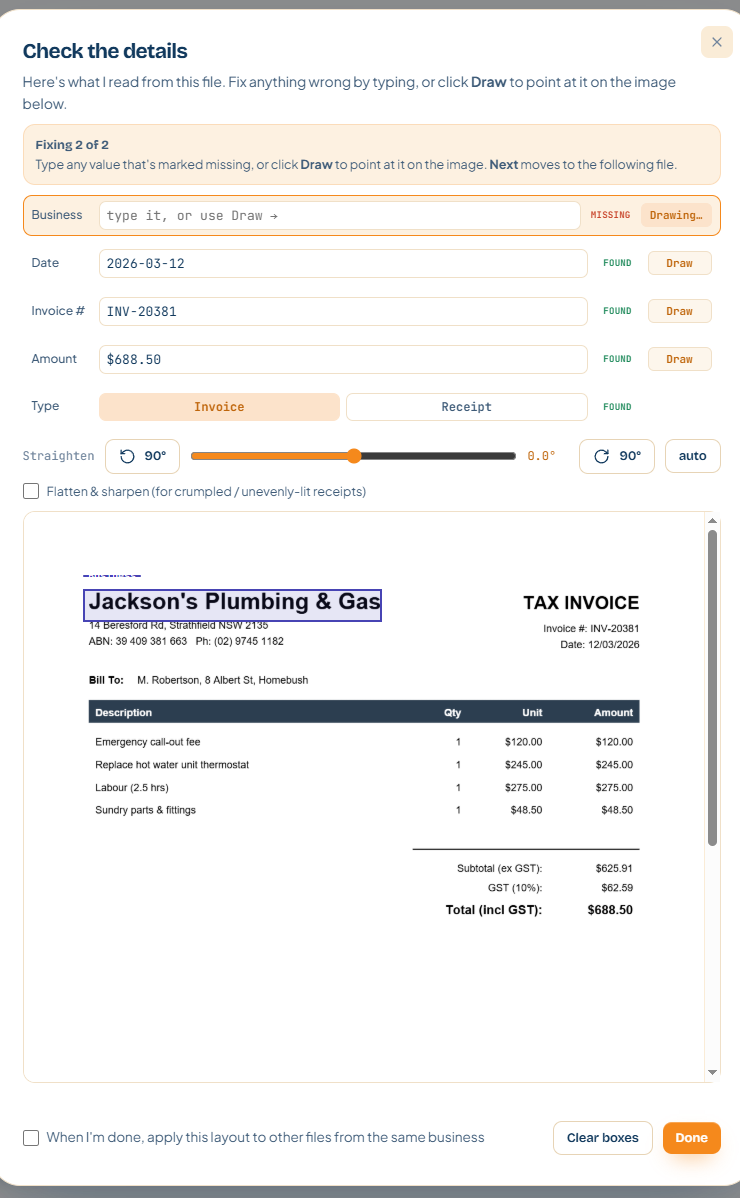
“Fixing 2 of 2” — it walks you through only the flagged files, in order, so you never go hunting.
A field tagged MISSING is the one to fill. Type the value, or hit Draw to point at it on the image.
Box the business (or any detail) on the document and TidyFello reads exactly that. Tick “apply this layout to other files from the same business” to teach it once for that supplier.
Move through the rest, then Done. Fields already FOUND are left alone — you only touch what's flagged.
Clear the flagged files and the banner turns green — “All 30 names look good.” Skim if you like, then download.

Fixing flagged files is optional — you can download at any time, even with blanks. A missing detail is simply left out of the name (e.g. no business → 2026-03-12_INV-20381.pdf). Fill things in only if you want them in the filename.
You don't have to use the guided fixer — every value is editable straight in the list, and each row tells you at a glance whether it's sorted.
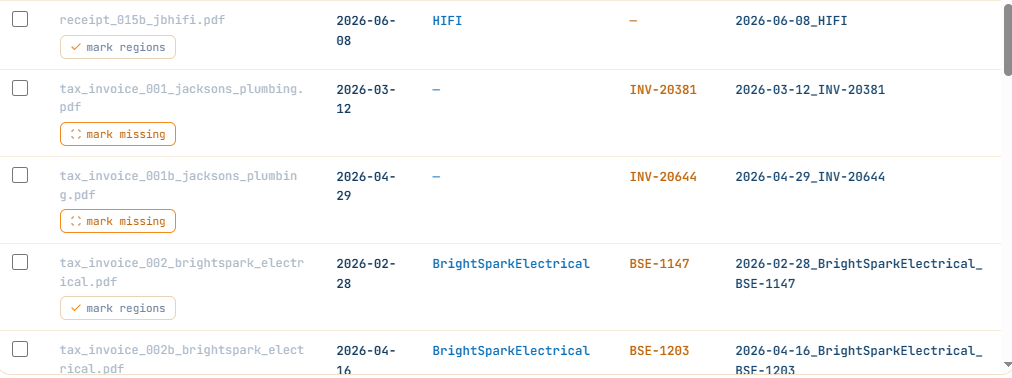
The lighter button with a tick means this row is confirmed and good. Nothing to do.
The darker button flags a row that's missing a detail (here, no business). Click it to fill it in on the image.
The dash (—) just means that field wasn't found. The name still builds without it — complete info isn't required to download.
Tap any business name or new name to type your own — the whole list updates live.
Below the table sit a few optional dials. Set them once and they apply to the whole batch — then download.
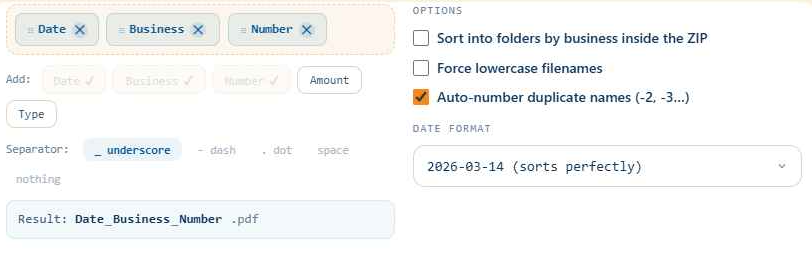
Arrange the blocks — date, business, number, amount, type — plus a separator, into the order you file by.
The Result line shows the pattern in action, so you know exactly what you'll get before you commit.
Folder-sort by business Pro, force lowercase, and auto-number duplicates so nothing is ever overwritten.
Pick how the date is written. 2026-03-14 (year-first) sorts perfectly in any folder — that's the default.

Hit Download renamed ZIP and every renamed copy arrives in one tidy bundle. Your originals stay exactly where they are, untouched.
This is the bit that matters most. Reading the files, pulling out the text, building the ZIP — all of it happens inside your browser. Nothing is uploaded, there's no account required to use it, and no server ever sees your documents. You could switch off your internet after the page loads and it would still work. That's why it's safe for client records, financials and anything confidential.
You don't need any of these to get started — but once you're past your first batch, these are the time-savers worth knowing.
Every proposed name is editable in place. Fix a business name once and TidyFello offers to update its other files to match.
Pick a preset like date_business_invoice, or build your own from date, business, number, amount and type tokens.
Day-first, year-first, compact or month-name. Year-first (2026-03-14) sorts perfectly in any folder — it's the default for a reason.
Snapped a receipt on your phone? TidyFello reads images (JPG, PNG, HEIC, image-only PDFs) right on your device. A few seconds each, still no upload.
If a tricky scan reads wrong, draw a box around the date or business and TidyFello re-reads just that spot — and can apply the same layout to that supplier's other files.
On big batches, have the ZIP arrive pre-sorted into a folder per business — drop the lot straight into your filing system.

Now go clear that folder of scan001.pdf chaos — your buddy's ready when you are.